
Symptom
When a user clicks Send in Outlook (Outlook on the web, new Outlook, or classic Outlook), the email is blocked and Outlook displays the following notice:
"Safeguard Send could not securely load your rules. Open its taskpane, connect your Microsoft account, and retry. If this continues, contact support."
This most commonly happens when an organization has not yet completed the one-time Microsoft 365 administrator approval, or when a new user is added before organization-wide approval is in place.
Applies to
Safeguard Send for Microsoft 365 (Retail).
Cause
Safeguard Send for Microsoft 365 (Retail) uses Microsoft sign-in to securely load your organization's rules before an email is sent. If Safeguard Send cannot obtain a valid Microsoft sign-in token - or if the rules service rejects the request - it holds the email instead of letting it go out unchecked.
Common reasons include:
- A Microsoft 365 administrator has not yet approved Safeguard Send for the organization in Microsoft Entra (even if some users consented individually, new users or users under Conditional Access / MFA can still be blocked).
- Your organization's Microsoft 365 tenant or sending domain is not yet enrolled on Sperry Software's side.
Resolution
Step 1: Approve Safeguard Send for your organization in the dashboard
Although the Outlook notice mentions opening the taskpane, not all Retail deployments include a taskpane. The recommended fix for all Retail customers is to approve Safeguard Send once for your entire organization from your Sperry Software dashboard:
- Sign in to the Safeguard Send dashboard at https://dashboard.sperrysoftware365.com.
- Open your Safeguard Send for Microsoft 365 subscription (Edit Safeguard Send Subscription).
- In the Microsoft 365 administrator approval section at the top of the page, click Approve for my organization and complete the Microsoft sign-in prompt.
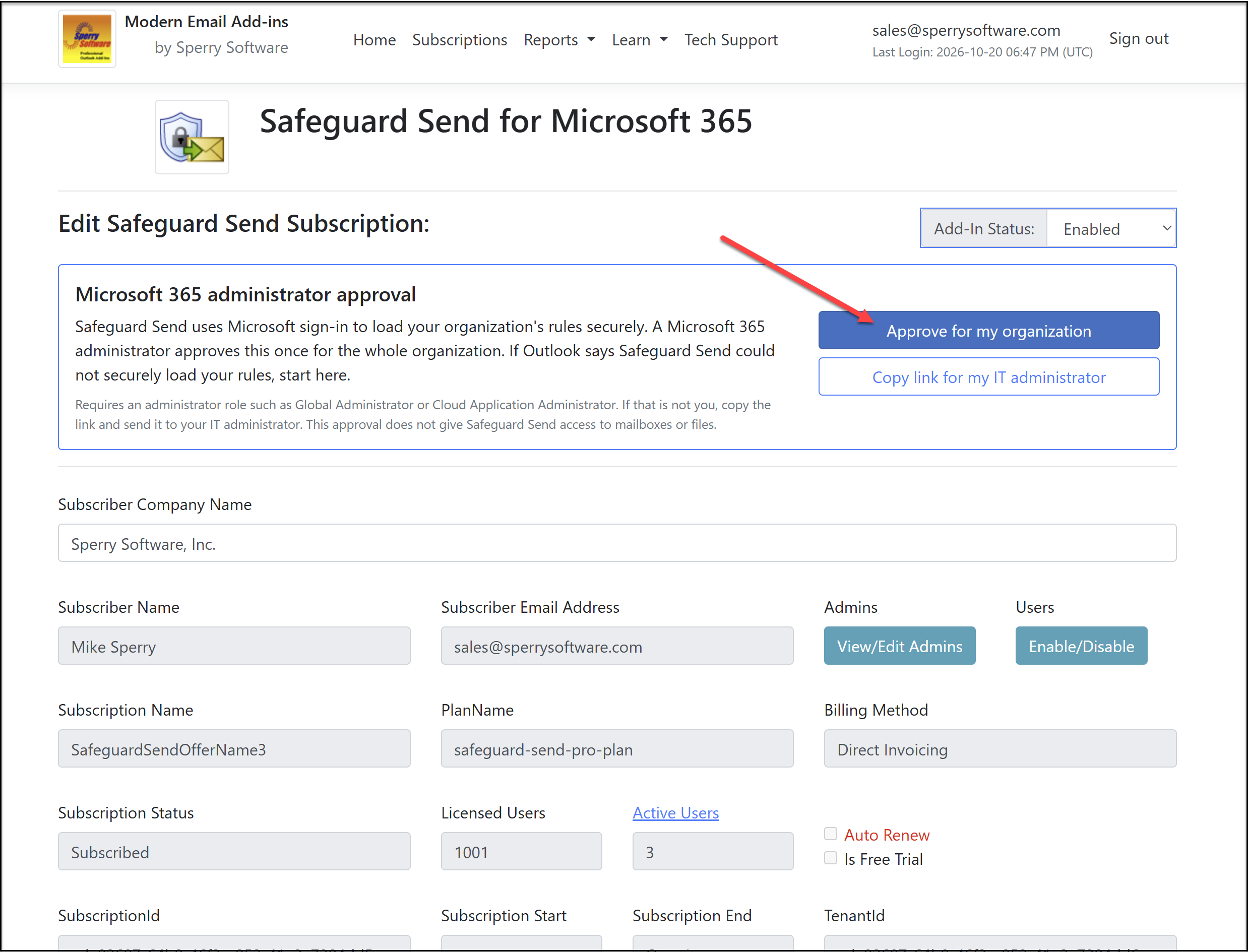
- Direct approval link: If you cannot access the dashboard (or the Microsoft 365 administrator approval section is not shown), a Microsoft 365 administrator can go directly to https://addins.sperrysoftware365.com/prd-addins/SafeguardSend/Retail/admin-consent.html to complete organization-wide consent.
- Administrator role required: Approving for the organization requires a Microsoft 365 administrator role such as Global Administrator or Cloud Application Administrator. If you do not hold one of those roles, click Copy link for my IT administrator right below the blue button and send that link to your IT administrator.
- Permissions note: This approval only allows Safeguard Send to authenticate users so it can securely load your rules - it does not give Safeguard Send access to mailboxes or files.
After the administrator completes approval, have the affected user return to Outlook and try sending again.
Step 2: Verify organization-wide Admin consent in Microsoft Entra (optional)
If an administrator wants to confirm that organization-wide consent is active:
- Open the Microsoft Entra admin center and go to Entra ID > Enterprise apps > All applications.
- Select Sperry Software Safeguard Send and open Permissions.
- Confirm that the grant appears under the Admin consent tab (organization-wide), rather than only under the User consent tab (individual users).
Note on taskpane sign-in: If your deployment does include the Safeguard Send taskpane, an individual user can also open the Safeguard Send panel while composing a new email and click Connect Microsoft account (allowing pop-ups for Outlook if blocked). However, completing Approve for my organization in Step 1 is the durable fix for all users.
Note on reassigning users: If you temporarily removed Safeguard Send from a user in Microsoft 365 Admin Center > Settings > Integrated apps and added them back, Microsoft can take 24-72 hours to re-deploy the add-in to their Outlook.
Still seeing the message?
If the notice continues after completing Approve for my organization and confirming Admin consent in Microsoft Entra, your organization's tenant enrollment or sending domain may need to be checked on our side. Please contact Sperry Software Support and include:
- The affected user's email address (and the From domain, if different).
- The approximate date, time, and time zone when the send was blocked.
- Whether other users in your organization are able to send normally.